Create a New Year Scenario Scenario

Contents
Creating a New Year Scenario
When starting your budgeting process for the next fiscal year, you will need to decide if you will start with the Model data from a current ESP Working Scenario, the current Year Adopted Scenario, or start with the data loaded from your ERP system. The most common practice is to start with the data from your ERP system. Whether you start with an existing ESP Scenario or your ERP system, you will also have to consider which Scenario has the Scenario Assumptions you want copied into the new fiscal year.
The recommended practice for starting a new fiscal year is to create a New Year Scenario that best represents the current fiscal year. Creating a New Year Scenario, whether you keep the Model data from the source Scenario or not, allows you to review and validate the employee data loaded from the ERP system. This is an important step and understanding any differences between what ESP loaded and the ERP system is crucial in moving forward to creating your new Year Fiscal Base Scenario.
Note: A New Year Scenario can only be created from a Scenario with a status of Working or Adopted.
Copy ERP Data to Model (default)
1.Financial, Employee and Salary Plan data are reloaded into the current Data Set and then copied to the Model Data Set.
2.Inflation Groups inactivated
3.Benefit Plan Model factors copied to the ERP Factors and Inflation Factors Cleared.
4.Pay Component Model factors copied to the ERP Factors and Inflation Factors Cleared.
5.Data Schedule Model factors copied to the ERP Factors and Inflation Factors Cleared.
Note: Data Schedules sourced from Lookup Tables like Retirement Status (PERS), with Keep Factors Updated checked will have both the Model and Current factors updated from the factors loaded from the ERP.
Keep Scenario Model Data
1.Financial, Employee and Salary Plan data are reloaded into the current Data Set but not copied to the Model Data Set.
2.Inflation Groups inactivated
3.Benefit Plan Model factors copied to the Current Factors and Inflation Factors Cleared.
4.Pay Component Model factors copied to the Current Factors and Inflation Factors Cleared.
5.Data Schedule Model factors copied to the Current Factors and Inflation Factors Cleared.
New Year Scenario Checklist
6. Create Reference Scenarios (optional)
7. Create a Fiscal Base Modeling Scenario
8. Adjust Fiscal Base Assumptions
1.If the Scenario Explorer is not currently open, click the Scenario Explorer  button from the main toolbar or select View - Scenario Explorer from the Main Menu.
2.From the Scenario Tree, right-click the Scenario name you want to base your New Year on, and select Create Scenario -> New Year Scenario from the pop-up menu.
Note: A New Year Scenario can only be created from a Scenario with a status of Working or Adopted.
3.Select the options and then click the Create button. If you are unsure of which options to set, just leave the options at their default values.
4.After the new Scenario is created, if it did not open in the main window, you should refresh Scenario Explorer  and the open the New Year Scenario by double clicking on the Scenario name.
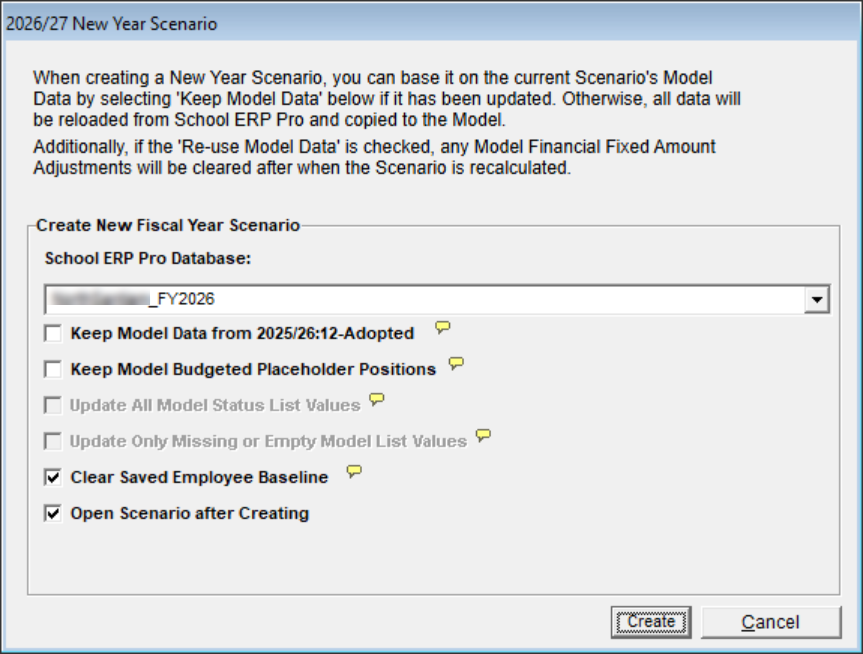
New Year Scenario Options
1.ERP Database
The database should already be set based on the current fiscal. Verify the selected database is your current fiscal Year.
2.Keep Model Data
If you are going to start your new year process with whatever is currently in the ERP system then leave this box unchecked and the Model Data Set will be overwritten by the Current ERP Data Set after it is reloaded.
If you do not want the Model Data Set in the new Scenario to be overwritten by the Current ERP Data Set after it is reloaded, check this box.
3.Keep Model Budgeted & Vacant Positions
If you created Employee Budgeted Positions in the source Scenario as Placeholders for positions like coaches, temporary or ad-hoc positions, and do not want them to be removed or overwritten when the Current ERP Data Set is copied over the Model Data Set then check this box.
4.Keep Budget Breakdown Items
If you created Financial Budget Breakdown items in the current Scenario, and do not want those items cleared, then check this box.
Note: Unless you included Financial Breakdown items in your budget export for loading into the ERP system, you should not check this box.
5.Update All Model Status List Values
If you checked the Keep Model Data option above, and want all the Model Lookup Lists items to be updated from the Current ERP Data Set after it is reloaded then check this box. This is useful to ensure Employee, Retirement and Workers Comp status are kept current.
6.Update Only Missing or Empty Model List Values
Similar to the option above but Model Lookup Lists items will only be updated be updated if they are missing or Empty. This is useful to ensure Employee, Retirement and Workers Comp status are kept current
7.Clear Saved Employee Baseline
Clearing the Employee Baseline Data Set will remove some of the clutter while you are validating the data that was loaded from the ERP.
The Daily Employee Data Set is automatically cleared, and will be reloaded based on the settings in Scenario Explorer for the Scenario.
8.Open Scenario after Creating
Opens the newly created Scenario in the Main window after creating.
Before the New Year Scenario was created, the source Scenario Salary Plan settings are saved so they can be used when the Salary Plans are reloaded from the ERP system. The most important of these setting is the Plan Workdays, and the Annual/Hourly status of each Plan and Grade.
6. Create Reference Scenarios (optional)
7. Create a Fiscal Base Scenario
8. Verify - Adjust Fiscal Base Scenario Factors
1.Default Retirement Status Schedule Item
2.Default Workers Comp Data Schedule item